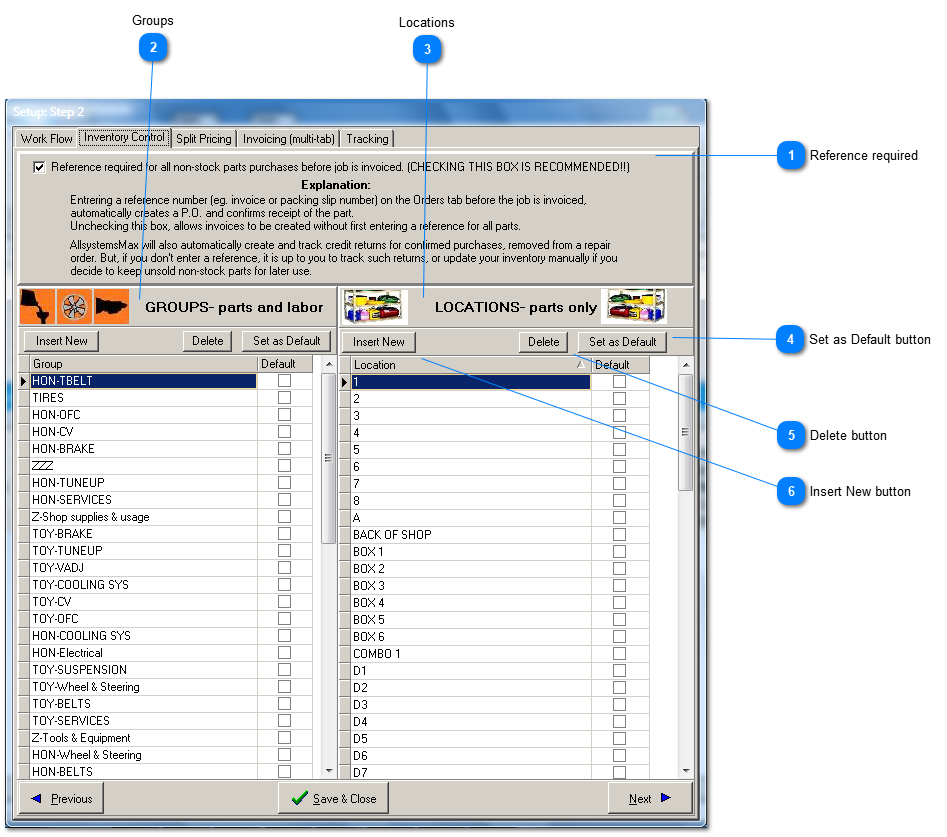
If you have thousands of labor services or stocked parts, searching will be more efficient if you first set up a master list of Groups and Locations and then assign labor and parts to items in the master list. Otherwise, Groups and Locations will likely not be needed.
If you stock a large number of parts, review a complete description of how AllsystemsMax provides simple yet effective control of stocked inventory by clicking here.
Reference required
A 'Reference Number' is a vendor invoice number, packing slip, or another vendor number that can be used to trace the part back to its source vendor. If this box is checked then you will not be allowed to finalize a repair order and turn it into an invoice until you have entered a reference number for any part on the repair order that was ordered specifically for the job, that is, was not pulled from stock on hand. This ensures that all purchases are accounted for at point of sale. It avoids the problem of having to locate vendor purchase receipts after the fact, or worse, neglecting to verify vendor purchases at all, and instead simply assuming that the vendor statement is always accurate.