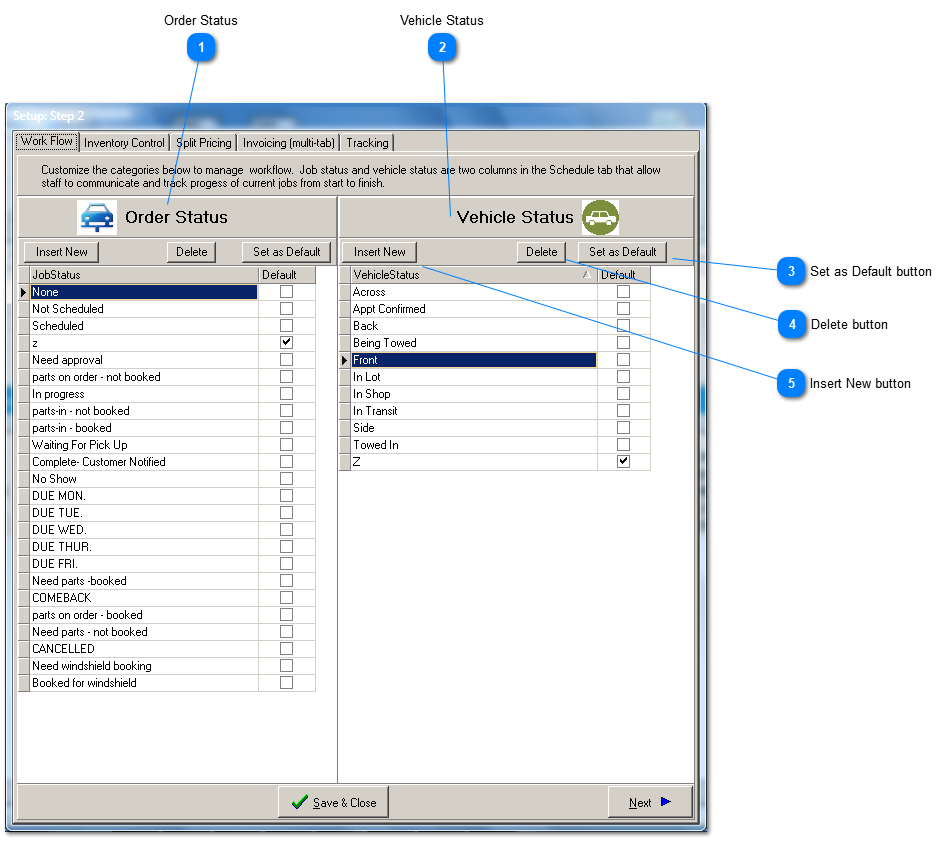
The Order Status and Vehicle Status master lists installed with the software are only suggestions to get you started. Modify them to fit the workflow of your repair shop.
These master lists will populate the drop down combo boxes found in the Repair Order tab after pressing the Sheduling button.
Order Status
Use Order Status to track the progress of repair orders from start to finish. Create whatever progress markers are best for your operation. Using Order Status helps you manage a quiet, organized, productive repair shop.Tip: Descriptions will be sorted alphabetically, so if you desire a listing in a particular order, start each description with a number.
Vehicle Status identifies current location or disposition. For a busy shop, the time saved in quickly locating a vehicle without interrupting other employees, is worth the time spent keeping the vehicle status up to date.