AllsystemsMax Pro
User guide
×
Menu
Index

Graphics

 
Graphics
1

ASA (left) check

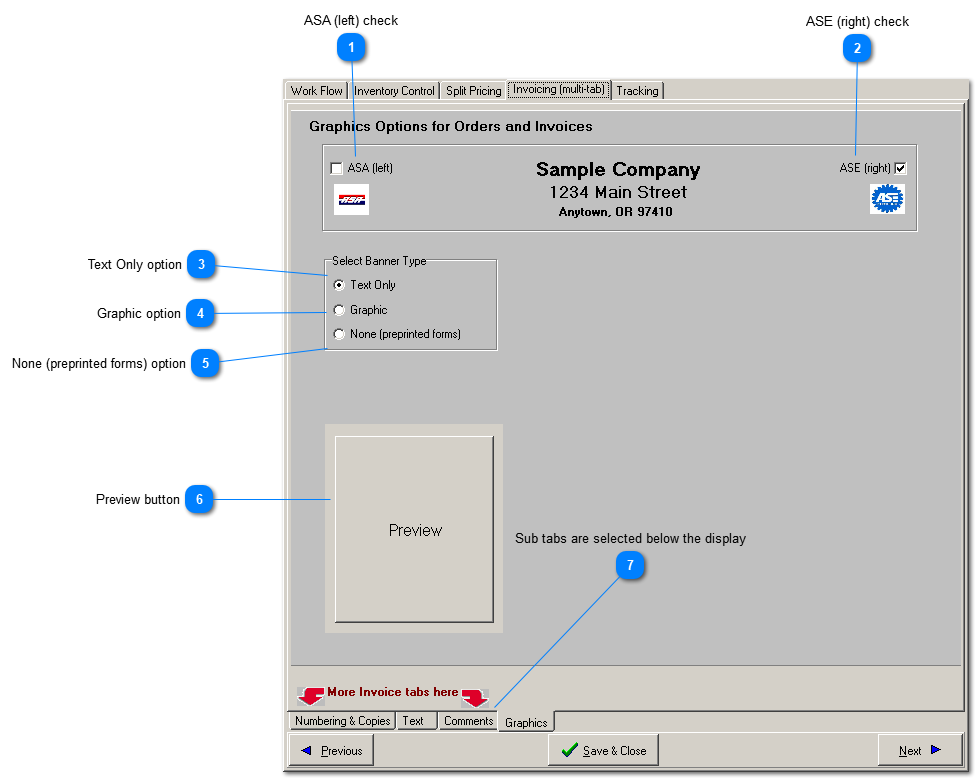
1. ASA (left) check
If checked, the ASA logo will be included as shown in the image above.
2

ASE (right) check

2. ASE (right) check
If checked, the ASE logo will be included as shown in the image above.
3

Text Only option

3. Text Only option
If selected, the company information found here will be used to create a header for your estimates, repair orders and invoices.
4

Graphic option

4. Graphic option
If selected, a graphic image file of your choice will be used for part, or all of the header area on estimates, repair orders and invoices. Click here to learn more about setting that up.
5

None (preprinted forms) option

5. None (preprinted forms) option
If selected, nothing is printed in the header area. You feed your printer with paper that is pre-printed with with company information and logo in that area (7.5 inches wide X 1.68 inches high).
6

Preview button

6. Preview button
Test your new settings here. Another way to test is simply to save and then click print/preview in the Repair Order tab.
7

Sub tabs are selected below the display

7. Sub tabs are selected below the display
Navigate among the Invoice sub-tabs using the mouse.