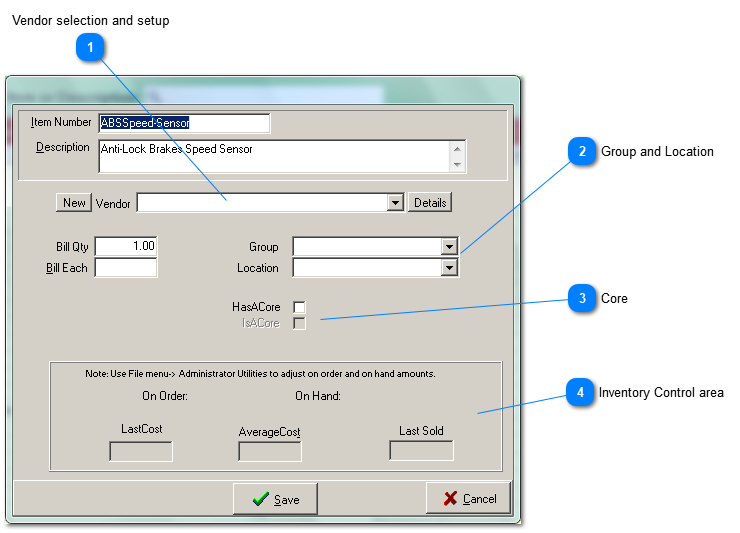
If the vendor is unknown then 'Default Vendor' is always present in the drop down list and should be used.
The vendor selection here is not very important for parts that are most often ordered for immediate installation on a vehicle. That decision is easily made when assembling the repair order.
New vendors can be created by clicking the New button and existing ones can be edited by clicking the 'Details button... all without going to the Vendor setup form.
Assigning a part to one of the pre-defined groups, gives you the ability to quickly display all group-related parts available for editing (as on the prior page) or insertion into a repair order, instead of searching one by one by item name or description. Either method is very fast, but if you have a large number of parts, or groups of related parts... then creating and using part groups may be worthwhile.
If the part has a core, check the HasACore checkbox.
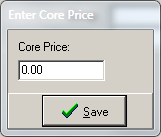
A secondary window will appear that provides the opportunity to enter the core price that will be charged if necessary.
A core price is required. After saving the core price, a new part with the same itemnumber as the parent but beginning with the '&', will automatically be created. When parts with cores are inserted into a repair order, the core part is inserted automatically and billed at zero quantity. If a charge must be made, the core price is already present. You only need to change the bill quantity. When the job is invoiced, cores not billed to the customer are automatically returned to the vendor by being placed in the 'Returns Bin'.