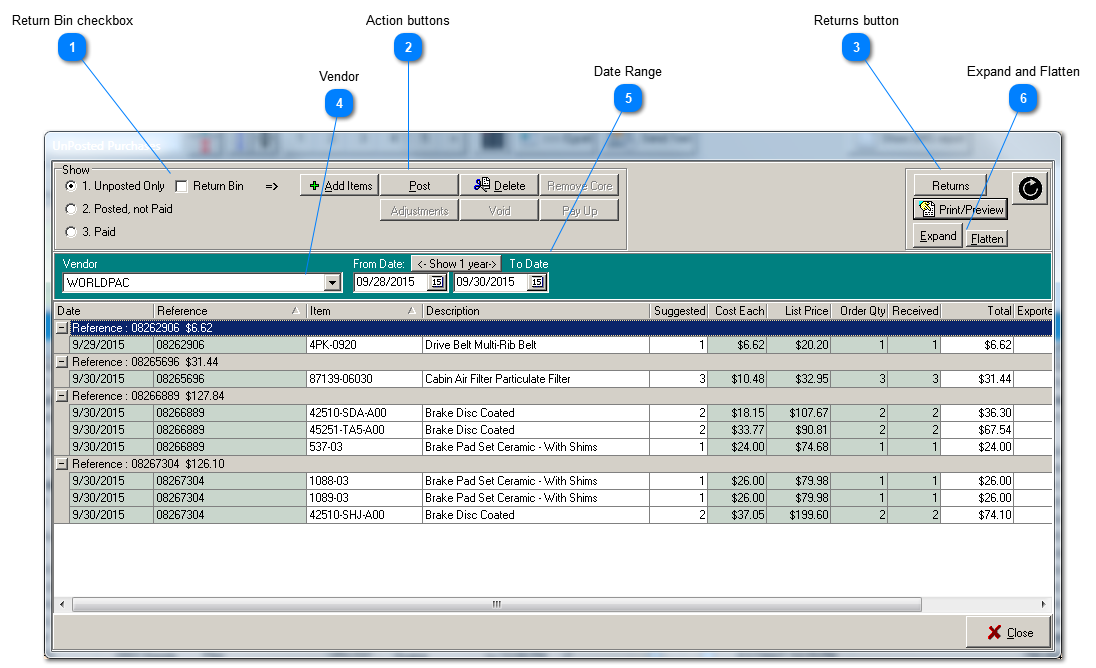
Notice that in the upper area (Show), the action buttons are enabled according to the purchase processing stage you have selected: 1. Unposted Only, 2. Posted, not Paid, or 3. Paid.
Return Bin checkbox
There are two types of unposted purchase order items; incoming purchases and outgoing returns. When an item is waiting to be returned to the vendor it is placed in a virtual 'Return Bin'. The return may be an actual box near the back door, a shelf in the parts room, or other physical location. But to the computer it is simply the 'Return Bin'. Check this box if you want to see pending returns rather than purchases
Purchase orders for items acquired for immediate installation on a particular vehicle are created simply by inserting them into a repair order. Until a reference number is also added, the purchase order will appear here as unposted. When the reference number is included, the item is elevated to stage 2: Posted, not Paid. All of that happens without further intervention on your part.
For items that will be placed into shelved inventory for future use, you must can create a purchase order here, or use the Reports tab-> Parts-> ReOrder guide to quickly created a purchase order for multiple vendors..
Post:
Posting a unposted purchase (or return) marks the item as received or returned. For receiving items, posting processes the item by adding it to inventory or to an open repair order. In the Inventory table, the OnHand amount increases, while the OnOrder amount decreases, and average cost is also recalculated. For both purchases and returns, the item is elevated to stage 2: Posted, not Paid.
Delete:
Delete a purchase order by first selecting it by clicking on the Reference header line.
Note- You cannot delete individual unposted items. Instead change the Order Qty to zero.
If not placed into shelved inventory, items purchased for immediate use on an open repair order and then deleted from that repair order are automatically added to the virtual Return bin. However, you may also click this button to move excess shelved inventory into the Return Bin. Essentially, you will be creating a purchase order for the part, but in reverse direction, back to the vendor.
The returns button is available at all stages of the purchase order processing.
Use the drop down combo box to select a vendor. Here only one vendor can be managed at a time. Use the Report tab-> Parts to view purchasing-related information on multiple vendors. Use the Reports tab-> Parts-> ReOrder guide to quickly created a purchase order for multiple vendors.