This will delete the highlighted it after confirming that you really want to delete it. After deleting a labor service you can still sell the service again, but you will need to recreate it first. If you think you may want want recover the item for use later, don't delete it. Instead mark it inactive in the details window.
If the item is not already in the list, click this button to open the Details button, but completely empty and waiting for details about your new item.
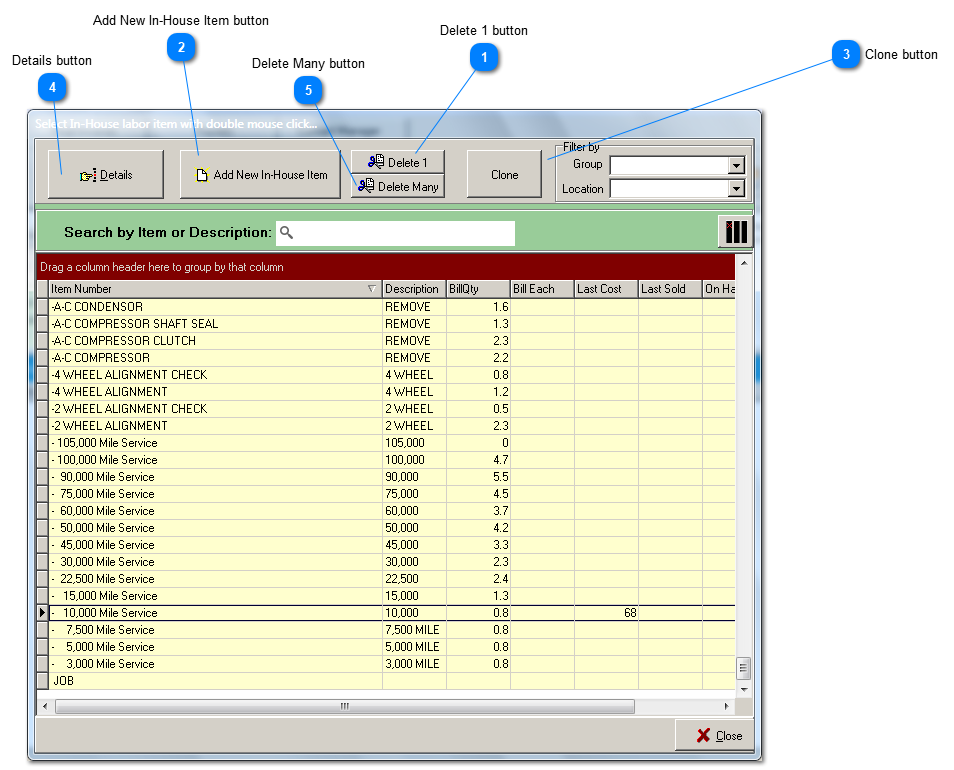
Clone will create an identical copy of the highlighted item but with a tilde (~) appended to the end of the itemnumber. Use cloning to quickly create many similar labor items. For example, to create a variety of tune-up services for 4, 6 and 8 cylinder vehicles, first create a base service called 'tune-up', then clone it to create 'tune-up~'. Edit the clone by changing the 'tune-up~' to 'tune-up 4cyl', and editing the price and other details by working off the base service entries already created for you.
Select an existing labor item for viewing or editing by double-clicking on the item of your choice, or by highlighting it with a mouse click followed by a click on the Details button.
If the item is not already in the list, click the Add New In-House Item button (2). This button opens the Details button, but completely empty and waiting for details about your new item.
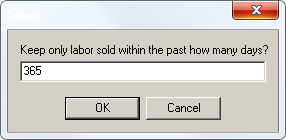
Because the default behavior of the software is to save all new labor line items for reuse on future repair orders, you may find it useful to periodically remove obsolete items from the labor list.
This button allows you to removes them with only a few keystrokes.