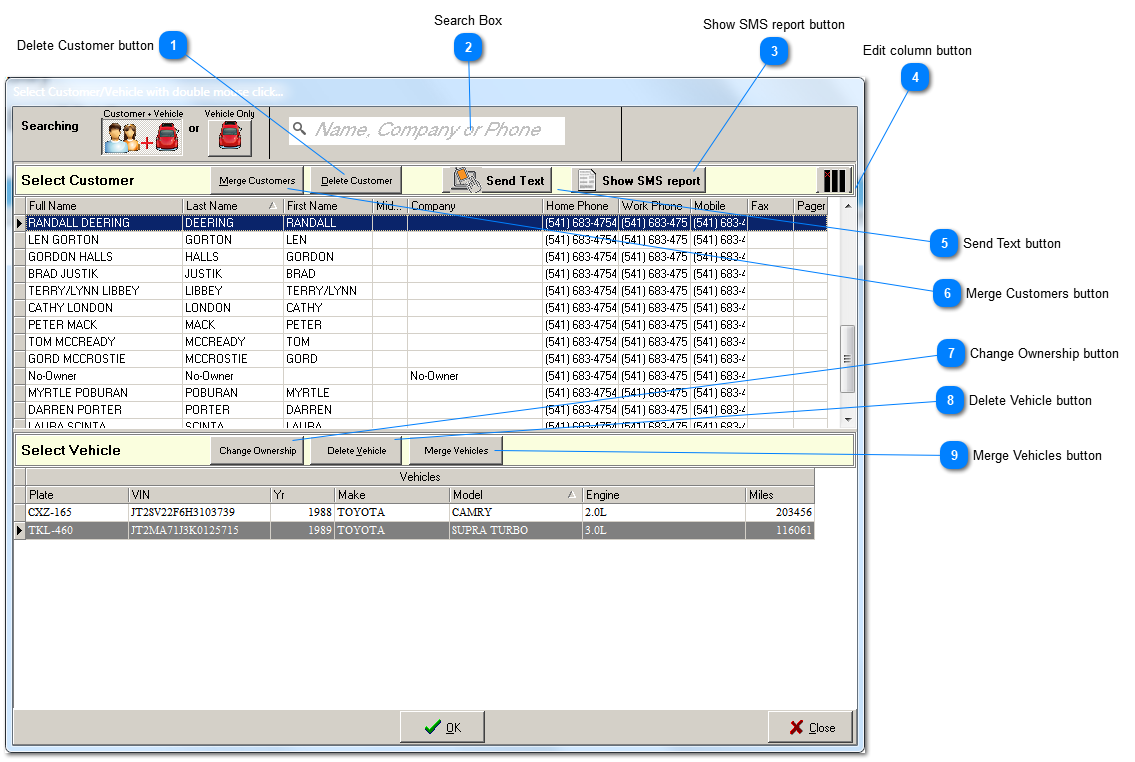
A customer that owns a vehicle cannot be deleted. Nor can vehicles be deleted if they have a history. To delete a customer, change ownership (7) to the customer named 'No-Owner' that is provided for this purpose. You will be able to continue to look up history for the vehicle by license plate or VIN, and the owner at the time of invoicing will still appear on the reprinted invoices. If a new owner returns to your shop with the vehicle, then first create a new R.O. for the new owner and a temporary vehicle '~TEMP'. Next, look up the vehicle under 'No-Owner' and once again change ownership, this time to the new, real owner. Finally, delete ~TEMP before creating any history for it.
The search box is very flexible and easy to use. Simply enter any part of first, middle, last, or company name, or any sequence of digits in the phone number. The quickest way to use a phone number is to enter the last 4 digits of the number.
When you display the texting history report by clicking this button, AllsystemsMax already has identified the customer and assumes you only want to see history for the currently selected customer. The report shows both sides of the texting conversation, ordered from oldest to most recent.
The Column Editor provides the ability to change which columns are displayed in the grid. When clicked, a list of all hidden columns pops up in the bottom righthand corner of the screen. Use your mouse to drag and drop column labels, in both directions, between the pop up list and the column header bar of the power grid.
If you find that you have two customer accounts that you decide should be handled as one customer account, first select the customer that you are gathering vehicle history from. Next, locate the target customer that you want to merge those records into. After merging all vehicles will be found under the target customer. The other customer will no longer exist in the database. Do not confuse merging customers and merging vehicles (9). When you merge vehicles you are combining the history of two vehicles owned by a single customer. After merging customers, if you have two sets of vehicle history for what is actually the same vehicle, then AFTER merging customers, you will also probably want to merge some vehicles so that the history of that vehicle is continuous under a single Vehicle ID. For more about merging vehicles see (9) below; also click here.
Changing ownership does NOT change the owner on finalized invoices. Invoices in AllsystemsMax, as saved, printed or reprinted, are considered as the legal documents they truly are and cannot be changed after invoicing time. When you change ownership you are only changing ownership responsibility for future work on the vehicle.
This button has limited use. You can only delete a vehicle that has no history. In order to maintain a valid audit trail, vehicle history is never deleted within AllsystemsMax. The primary use for this button is after creating a new customer with a ~TEMP vehicle, in order to simply get a new customer established in the database without a vehicle. AllsystemsMax is designed so that the minimum of preset information is required before doing productive work. The most common use for this button is within the process of transfering waiting for reassignment in the ownership 'holding tank' called 'No-Owner', as described in (1), above.
Care should be taken when merging vehicles within a single customer. You will be merging two parts: 1) the vehicle description, and 2) the service history. The first decision that must be made is which vehicle description to keep and which to get rid of. Which description is more accurate and will require the least editing? The vehicle with the most recent odometer reading may be the best choice. If it is less complete you can still use it and recreate most of the description if the VIN is accurate by decoding the VIN. But some of the description fields (the ones on the right side the vehicle description tab) have been hand-entered by you. So before you merge, examine both records carefully and make hand written notes if necessary.